Quick Search
For a quick search, use the text boxes displayed in the column headers of any
table displayed, the text box contains a magnifying glass image. After a table
is displayed for the first time, as characters are typed into the text box, the
content of the table will update with entries that contain the characters
entered. This type of searching is called Inclusion and is one of several
ways to search/filter records displayed. The different modes of searching are
accessed using the dropdown button on the right side of the text box.
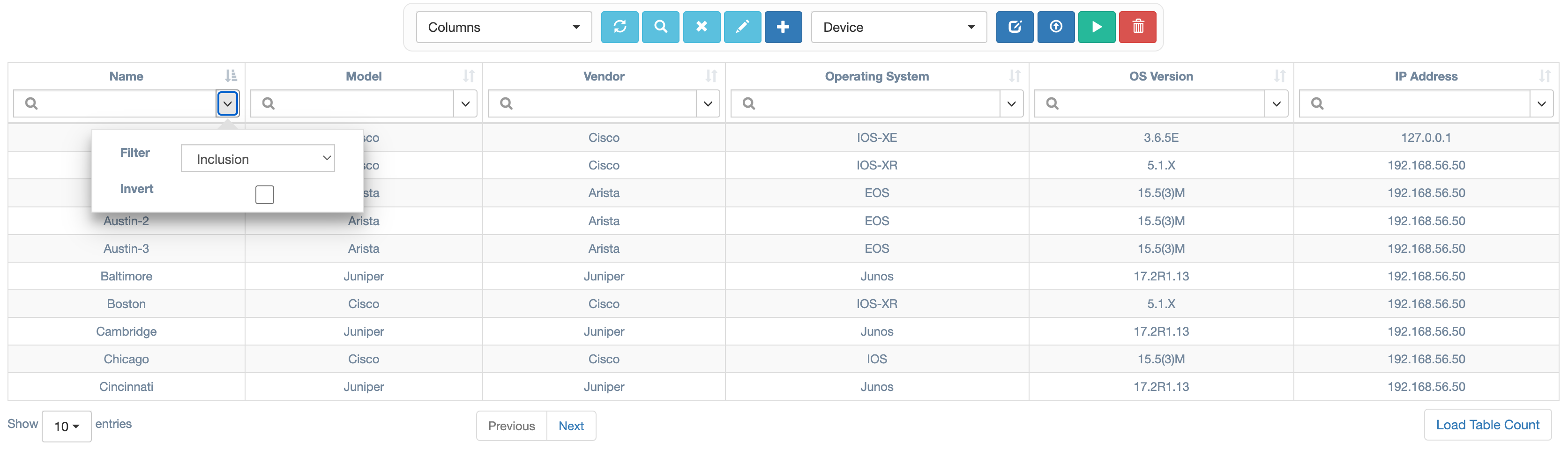
The different search/filter options are available through the Filter
dropdown list. The options available are:
Inclusion: (default) Records, where the column data includes the characters entered, will be shown in the table. This option is not case-sensitive.Equality: This option will display records where the column data is an exact match for the characters entered. This option is not case-sensitive.Regular Expression: The records displayed are those where the column data matches the regular expression entered.Empty: The records displayed are those where the column data is empty or null.
The options also include an Invert check box. When this box is checked, the
records displayed include records where the column data does not match
the characters or expression entered and the filter type selected.
Note
If several of these fields are populated with values the results will be
based on all fields where input was provided. (i.e. it uses the Boolean
operator AND).
When changing the Filter type or Invert selection, the Refresh button
 in the
control components at the top of the display must be clicked. To clear all
search/filter criteria click the
in the
control components at the top of the display must be clicked. To clear all
search/filter criteria click the Clear Search button
 in the same collection of controls.
Advanced search
This search feature is relationship-based; it focuses on the relationships
between objects. It is accessed by clicking the Advanced Search button

A dialog opens presenting criteria options based on the object type being searched. Options for Device searches will be different from options for Pool searches.
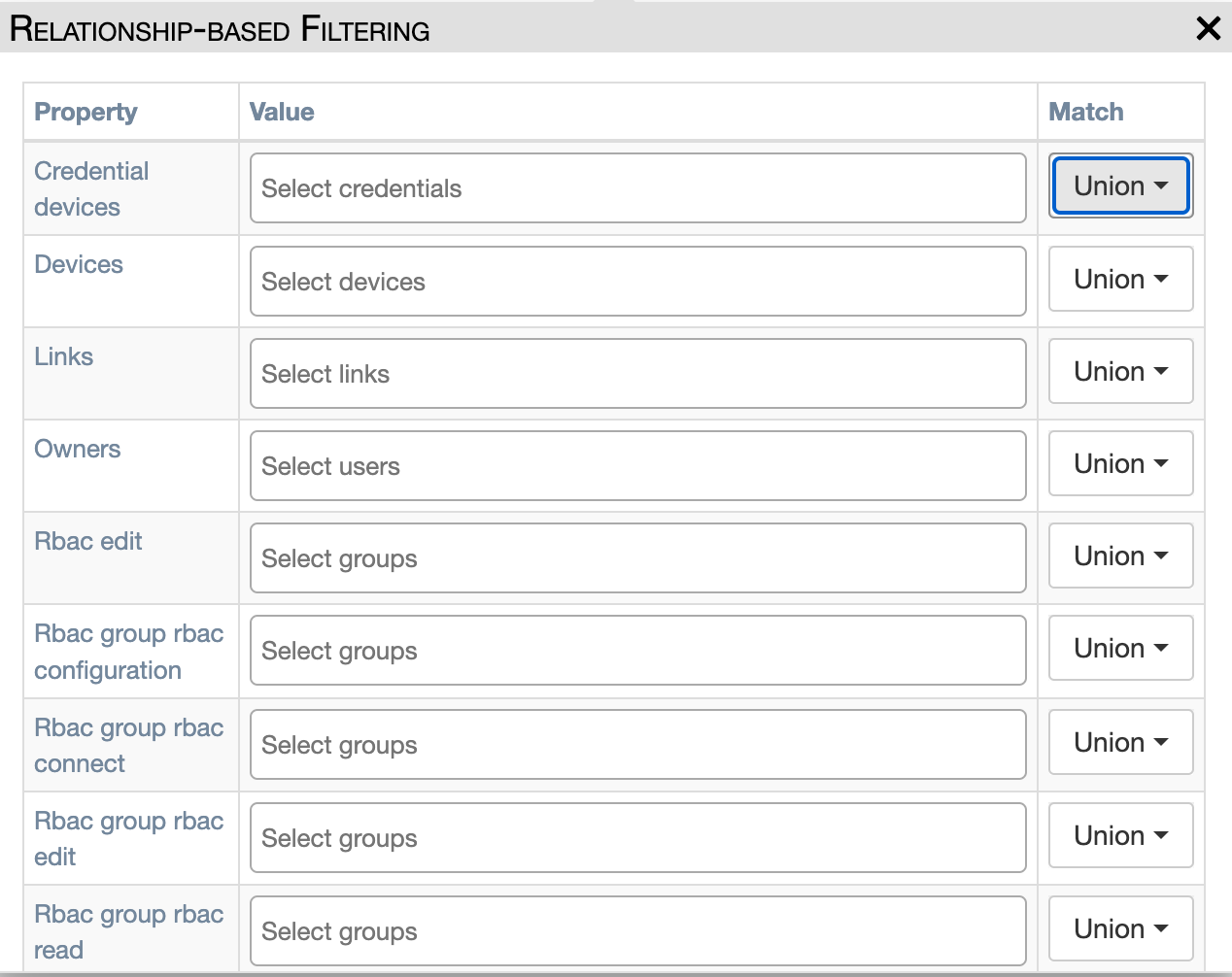
Based on the Property identified in the first column, enter an appropriate
Value for the property. For example, enter one or more device names for the
Devices property. The Match column selections control which results to
show:
Union: Includes results where one or more of the criteria is met. If two device names are provided, this selection will display results where either device is present.Intersection: Includes results where all criteria are met. If two device names are provided, it will return results that contain both devices.Empty: Includes results where none of the criteria is met. If two device names are provided, and this option is selected, the results will be that neither of the devices are present.
Global Property Search
For devices and services, a special "property search" is available in the table by clicking the following icon:

This global search filters the table by looking for a specific keyword in any property of any instance.
Example use-case: in the service table, search for a specific Python variable across all Python fields (pre-processing, Python snippet services, post-processing).