Changelog
Overview
The eNMS changelog is found under System / Changelog
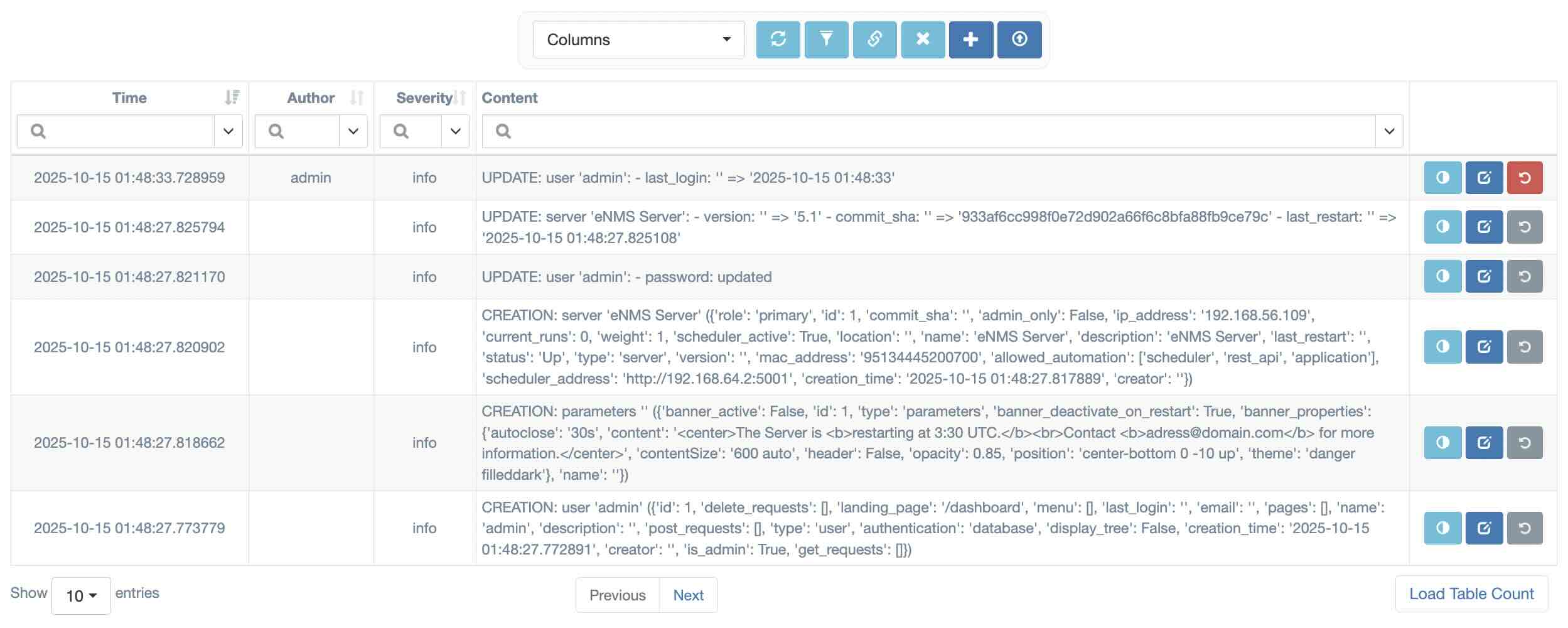
Changelog contains the following searchable information:
- Object creation, deletion, and modification activity.
- Running of services / workflows; when they are run, who ran them.
- Various administration logs, such as database migration, parameter updates, etc.
- Custom logs, defined by users in services / workflows.
Object Changelogs
Some changelogs are linked to specific objects, detailing how they were created, updated, or deleted. In the changelogs table, you can enable the "Target Type" and "Target Name" columns to see which object each changelog pertains to.
A change linked to a specific object can sometimes be reverted or undone. The "Revert" icon on the right side of the changelogs table allows you to do this. If the icon is greyed out, the "Revert" action is not available.
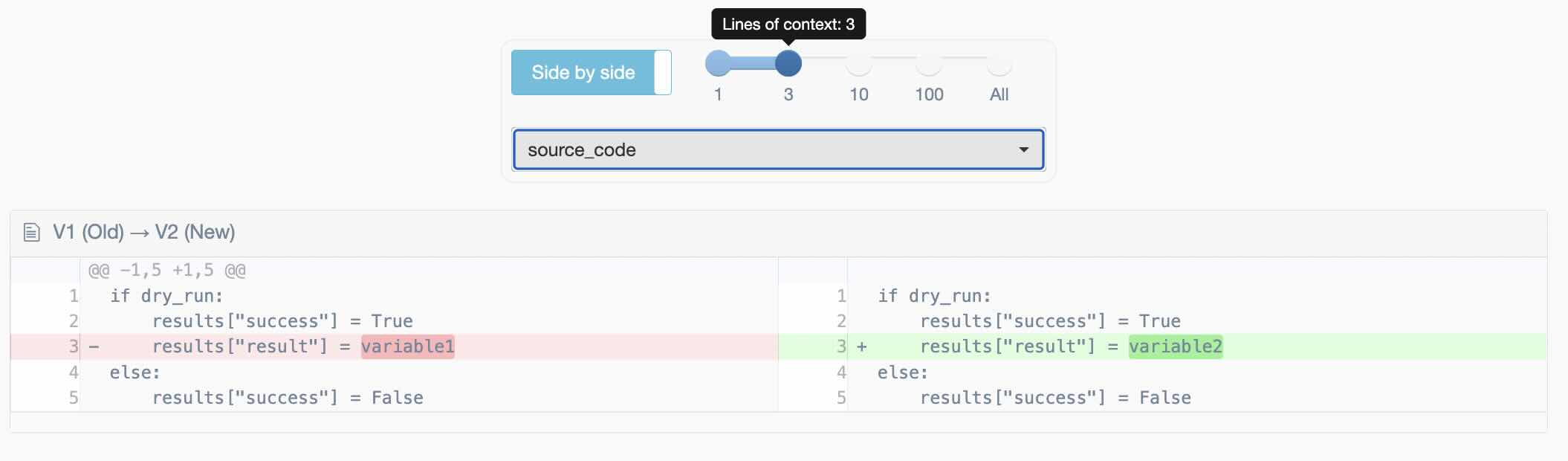
When the changelog relates to an object update, a "Diff" panel allows you to select any of the properties that have changed. For each property, it displays a git-style diff showing the value before and after the change, making it easy to track modifications, especially for large textfields like python code in a service pre/post-processing.
Filtering Changelogs
You can filter changelogs to see all entries for a specific object type or a particular object. There are two ways to do this:
In the changelog table:
- Show the "Target Type" and "Target Name" columns.
- Type the object type or name you want to filter by in the search fields at the top of these columns.
For example, here's how to view changelogs for the device named "Atlanta" only from the changelog table:

From other tables:
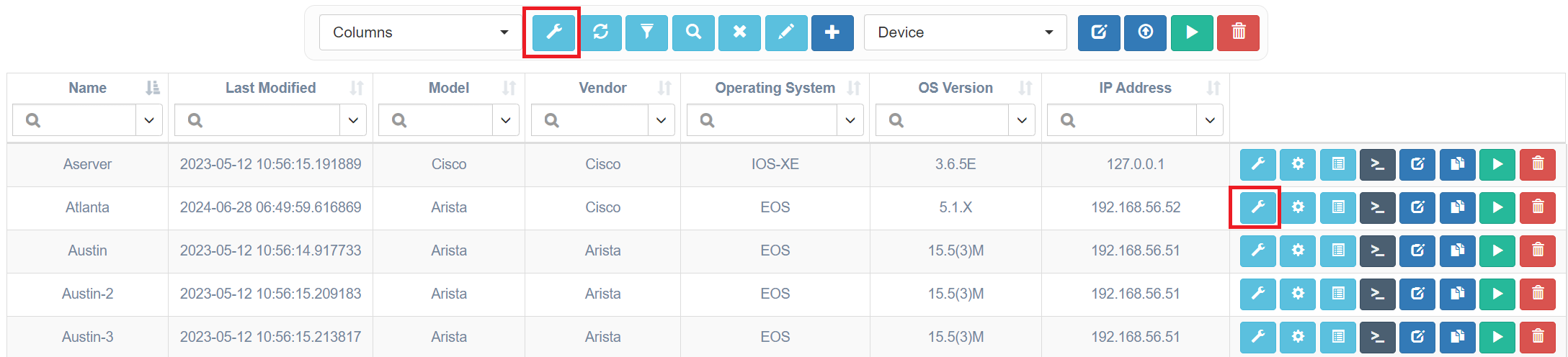
- Click the "Changelogs" button in the top menu to see all changelogs for the type of objects shown in the table.
- Click the "Changelogs" button in an object's row to see all changelogs for that specific object.
For example, you can click these buttons to view changelogs for all devices (using the top menu bar) or just for the device named "Atlanta" (using the row-specific button):
Reverting Changelogs
Some of the changelogs linked to an object can be undone. The following changes support reversion:
- Updating standard properties (strings, integers, and lists)
- Updating one-to-many (scalar) and many-to-many relationship
- Deletion of non-shared services and edges in the Workflow Builder
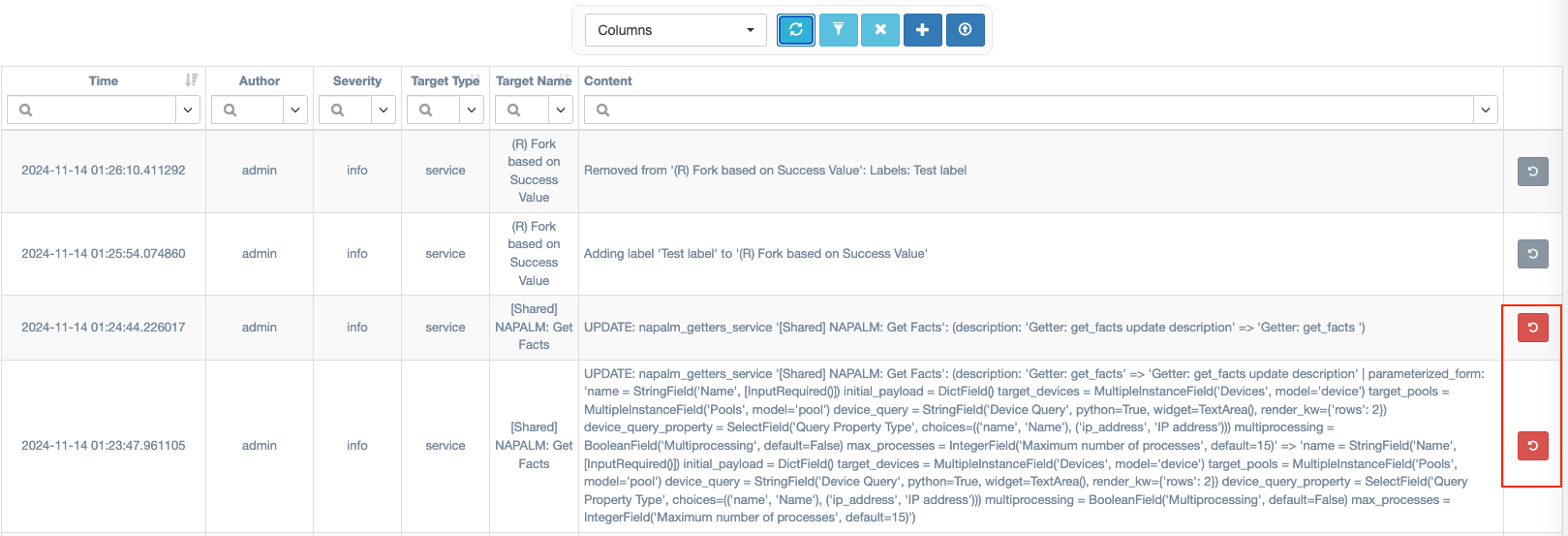
Changelogs can be undone by clicking the red button on the right side of a row in the changelog table. If the button is greyed out, reversion is not supported for that specific type of changelog. For a user to revert a changelog, "edit" access to the target object is required.
Workflow Changelogs
Workflow changelogs are handled uniquely because they must include not only changes to the workflow object itself but also:
- Updates to any service or edge in that workflow (including services and edges in subworkflows, subworkflows' subworkflows, and so on)
- Changes to labels (adding, editing, and deleting)
- Creating and deleting services and workflow edges
However, the changelog of a workflow does not include:
- Changes made to the parent workflow (by design)
- Changes made to the superworkflow when displaying changelogs of the top-level workflow (not yet supported)
Accessing Changelogs
From the Workflow Builder, you can:
- Access the main workflow changelogs by clicking the wrench icon in the upper menu.
- Access the main workflow changelogs from the right-click menu: "Workflow" / "Workflow Changelog".
- Access a service's changelogs from that service's right-click menu: "Display" / "Changelog".
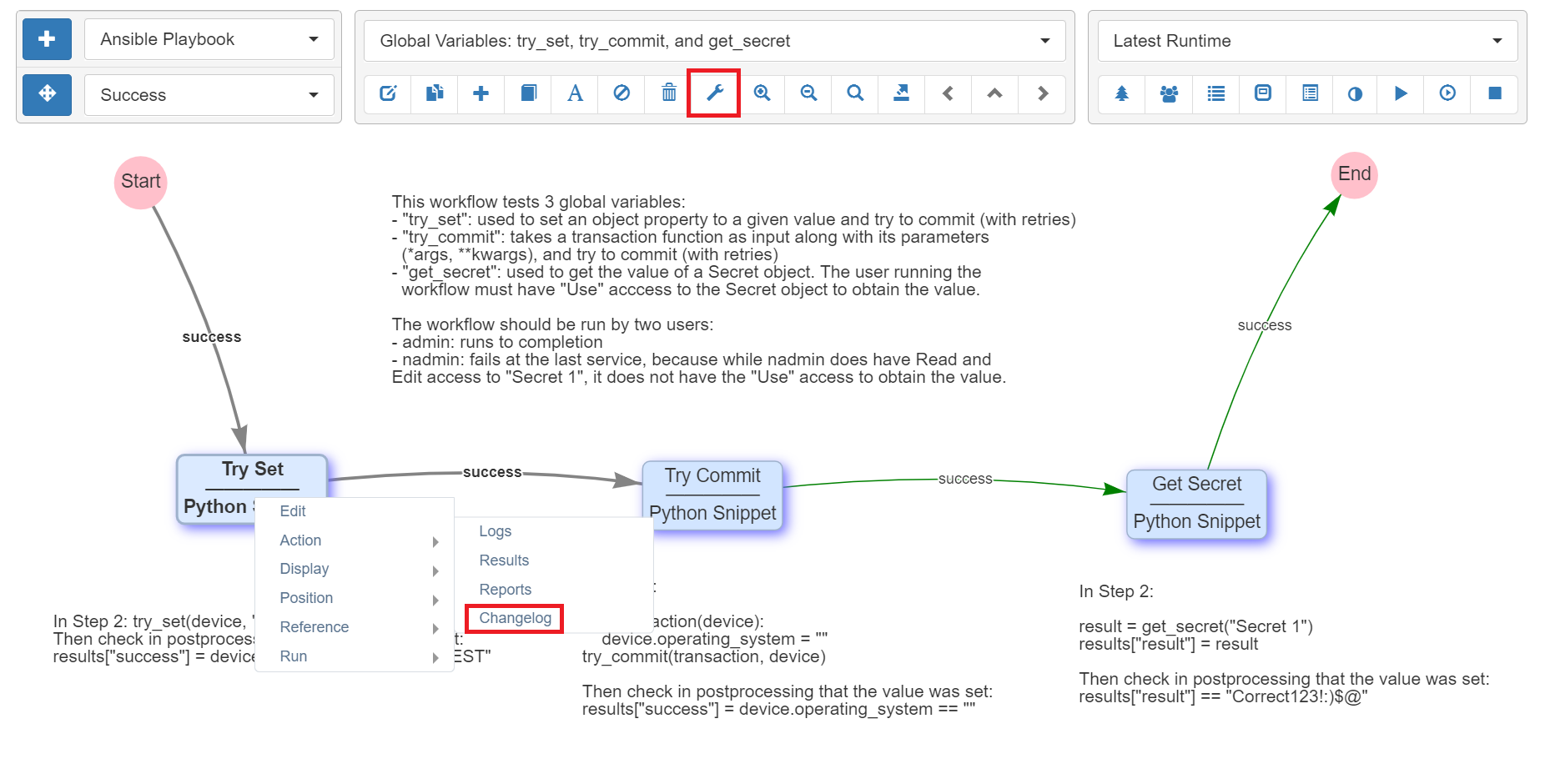
Note that when more than one service is selected in the Workflow Builder, the "Changelog" entry in the menu (right click -> "Display" / "Changelog") will display changelogs for all selected services.
For the Network Builder, the same options described above for the Workflow Builder are also available.
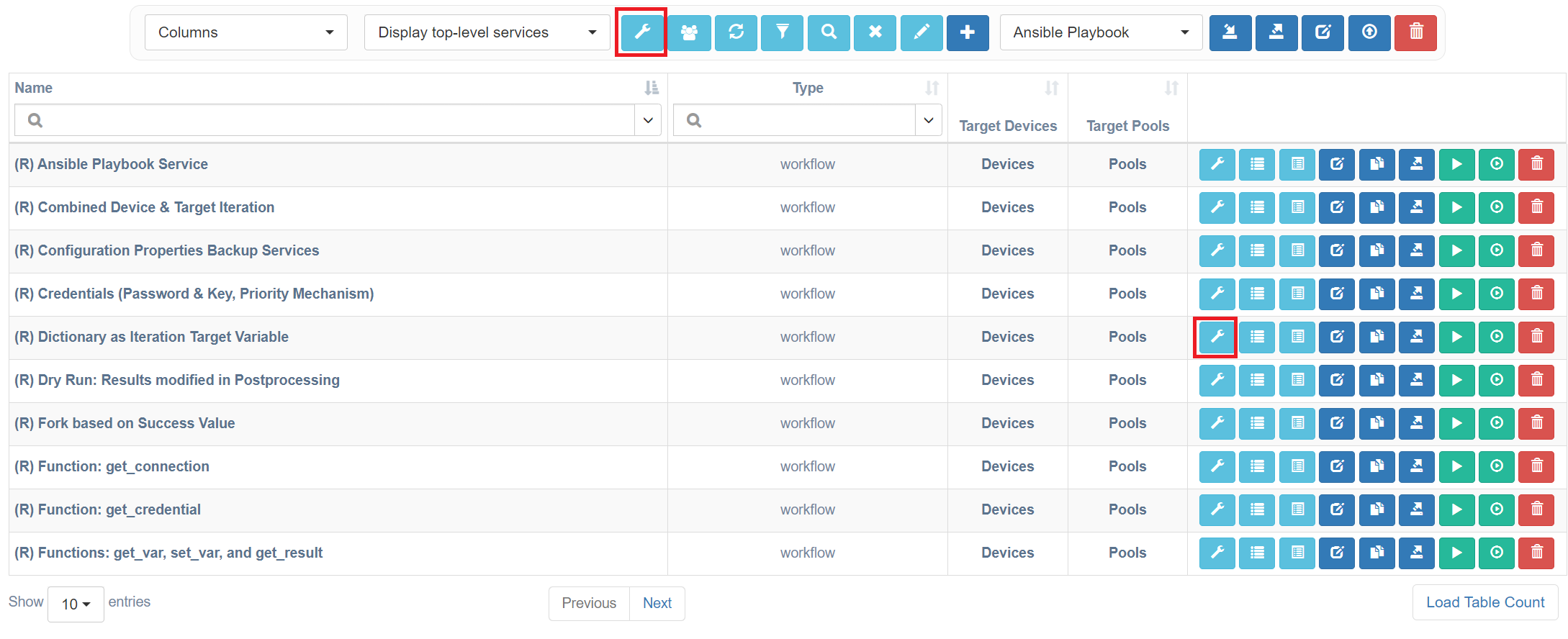
From a table, you can:
- Access all changelogs for the table's type of objects by clicking the wrench icon in the upper menu.
- Access the changelog for a specific object by clicking the same icon in the object's row.
Maintenance
A Python script is available in the troubleshooting panel to permanently delete all objects currently in a "soft-deleted" state.