WebSSH Connection
WebSSH provides terminal access to a device where eNMS establishes a Telnet or SSH session to the device using the information stored in the network inventory. There are multiple ways to establish a WebSSH connection.
From Devices Inventory Table
You can connect to a device by clicking on the Connect button of a device
entry in the Inventory -> Devices table as shown below. This same button can
be accessed from System -> Dashboard panel by clicking on the Devices graph to see
a table of those devices, as well as from the Inventory -> Pools panel by clicking
on the Devices link to see a table of devices for each pool.
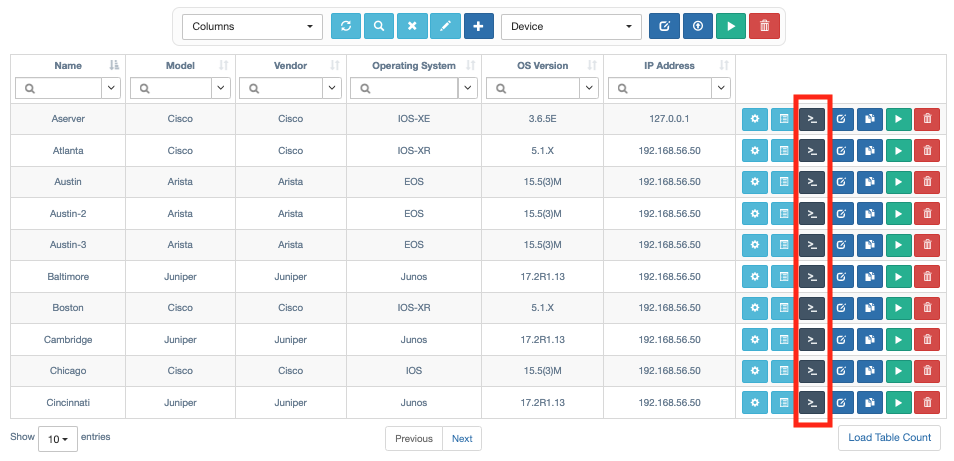
The following dialog will appear:
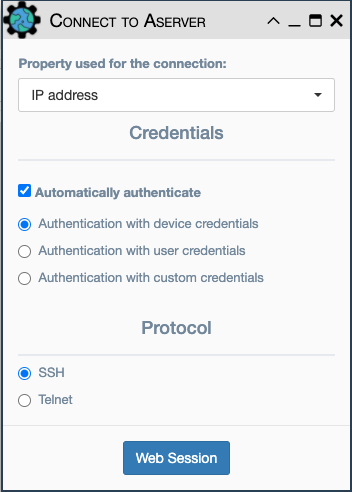
You can configure the following parameters:
Property used for the connection: This dropdown list is used to select one of the following options:IP address: This is the IP address stored in inventory for the device.Name: This is the name property of the selected device.Console 1: The value stored in the Console 1 property for the device.Console 2: The value stored in the Console 2 property for the device.
Automatically authenticate: (SSH only) eNMS uses one of these sets of credentials to automatically authenticate to the network device:device credentials: (default) credentials stored in the inventory.named credential: selected by the user in the connection dialog from existing credential instancescustom credentials: provided by the user in the connection dialog directly to the device.
Protocol:SSHorTelnet.
When the session parameters are configured as desired, click the Web Session
button to connect to the device.
From Network Views
Connections can also be initiated to a device from views
Visualization -> Geographical View or Visualization -> Network Builder.
Right-click on any device and select Connect. The same dialog detailed
above is used to complete the connection process.
Note
As a security feature, eNMS stores device interactions initiated via the WebSSH
Connection feature into Session objects.
Refer here for more details on Sessions.