More Workflow Features
Service Dependency
If a workflow contains parallel paths of execution, and one service must be run after another service in another path, you can enforce that order by configuring Priority in Step1 of the Service/Workflow Editor. One such example is illustrated here:
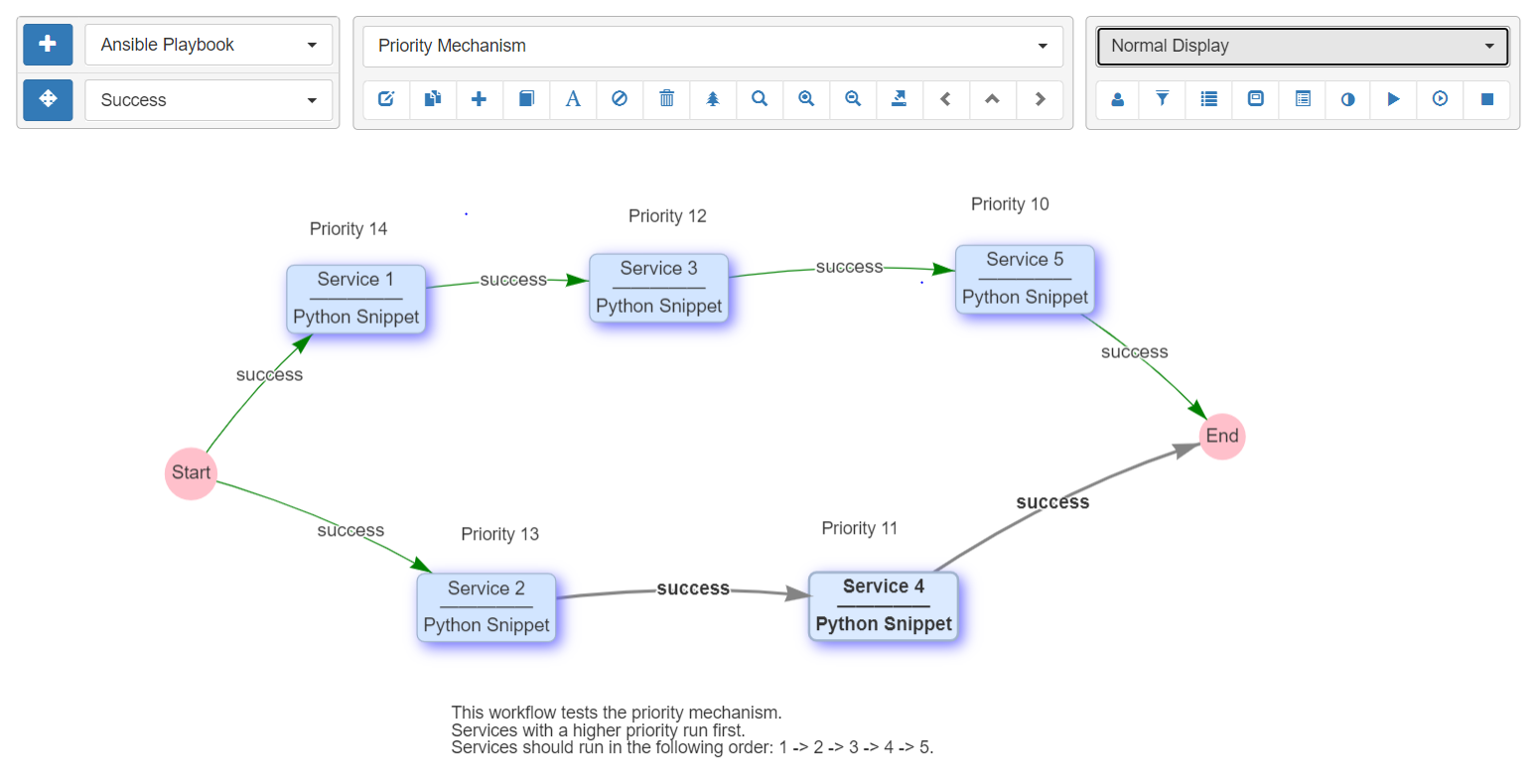
Priority allows the user to determine the order a service runs when two services would otherwise be run at the same time. The typical use case is when a service has two edges exiting from the right side and both edges are the same type. In this case the user may determine the order of the service execution using Priority. The higher number gets run first.
Restart Workflow From Here
Using the right-mouse-click menu, a workflow can be restarted from any service as the "Entry point" and using the runtime payload from a previous run. This is useful if:
- the user is testing a workflow with a lot of services.
-
device targets fail unreliably and automation must be restarted at unpredictable locations in the workflow and:
a) services are not idempotent, meaning that it is not possible to re-run the same services on the devices without breaking, or:
b) there is simply not enough time to re-run all the previous services.
Selecting Restart Workflow from Here by right-clicking on a service
presents the user with a form to select:
Restart Runtime: The previous runtime to use as the payload for continuing the workflow. This defaults to the runtime that is currently displayed in the workflow builder.-
Targetsgives several options for where to obtain device targets for the new run:- Manually defined: Use the targets manually defined below.
- Restart run: Use the targets from the selected restart runtime.
- Workflow: Use the targets that are currently defined at workflow level.
-
Devices: for use with theManually definedoption above. Pools: for use with theManually definedoption above.
Note
Variables, set to values that cannot be streamed as JSON, are not
available to subsequent services after restarting the workflow. For
example, if the user performed a set_var on a python function to allow
it to be used in a subsequent service, this will not work after using
Restart Workflow from Here.
Disable a Service or Workflow
The Disabled property, when checked, prevents a workflow or service from
running from the UI or from the REST API. This is useful when closed loop
automations that are triggered through the REST API by another system need
to be prevented from running.
The Disabled property is accessed in the UI in the Step 1 Service / Workflow
Editor panel. And when it is checked, the Disabled Time & User is captured
in the UI in a read-only field. The property can also be toggled via the REST
API instance endpoint rest/instance/service and passing a payload that looks
like:
{
    "name": "service or workflow name",
    "devices": [""],
    "disabled": true
}
Note
Disabling a service inside of a workflow prevents that service from running with the Right-Mouse-Click->Run option. It does not prevent that service from running when the entire workflow is run: use the Skip option to achieve that functionality instead.
Connection Cache
When using netconf, netmiko, napalm, and scrapli services in a workflow, eNMS will cache and reuse the connection automatically. The number of open connections for each library is displayed in the workflow builder as the workflow progresses.
A connection threshold can be defined in the automation.json file to limit the number of concurrent connections. It is configured with the following parameters:
enforce_threshold: Activates the threshold mechanism (default:false)threshold: Maximum number of connections (default:100)log_level: Log level of the warning (default:warning)raise_exception: Prevents new connections from being created when the threshold is reached
In the Step2 Connection Parameters section of a service, there are some properties to
change this behavior :
-
Start New Connection: before the service runs, the current cached connection is discarded and a new one is started. -
Connection Name: If changed to something other thandefault, the connection will be cached as a separate connection to that same device. This allows for multiple simultaneous "named" connections to a single device, as in this example:
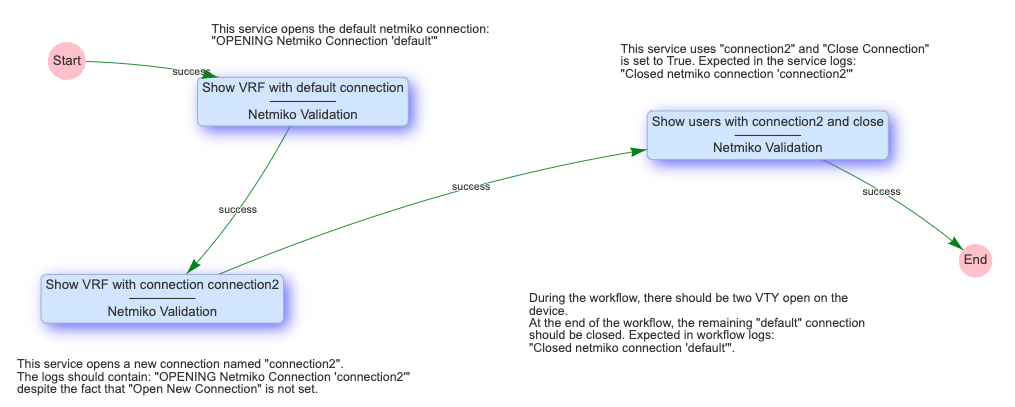
Close Connection: once the service is done running, the current connection will be closed.
Waiting Times and Retries
Services and Workflows have a Time to Wait property: this tells eNMS
how much time it should wait after the service has run before it begins
the next service.
A service can also be configured to Retry in the event of a failure.
Retries allow for a Number of Retries, Time between retries, Max
number of retries to be configured.
The Max number of retries exists because it is possible for the user to
manipulate the retries variable in post processing section for service
results. For example, the user could set additional retries in the event
of some condition, or perhaps if something is missing in the results, increase
retries by 1. This Max number of retries is settable to prevent an
infinite loop from occurring: once it is reached, the service will fail.
To demonstrate the relationship between retries and wait times, an example execution of a service in a workflow is as follows:
First try (failure)
time between retries pause
Retry 1 (failure)
time between retries pause
Retry 2  (Successful, or only 2 Retries specified)
Waiting time pause
Superworkflow
Just as a workflow can contain a subworkflow to subdivide and
encapsulate related functionality, a workflow can also designate a
superworkflow in Step2. The superworkflow allows for services to
be run before and after the main workflow and using a potentially
different workflow traversal mode (service by service or device by
device).
Superworkflows function like a document template so that activities common to all workflows can be performed. When the same superworkflow is used by multiple main workflows, it behaves like a shared service: a change to the superworkflow affects all workflows that use it.
In the superworkflow definition in Workflow Builder, the
position of the main workflow is designated by adding the Placeholder
service to the graph. And in the main workflow definition, the
superworkflow must be selected from the list of existing workflows.
Workflow Tree
A special "tree" display is available in the workflow builder to help manage workflows with many services or multiple subworkflows.
Enable the tree display by clicking the "tree" icon in the middle menu of the workflow builder.

The tree will appear on the right side of the builder.
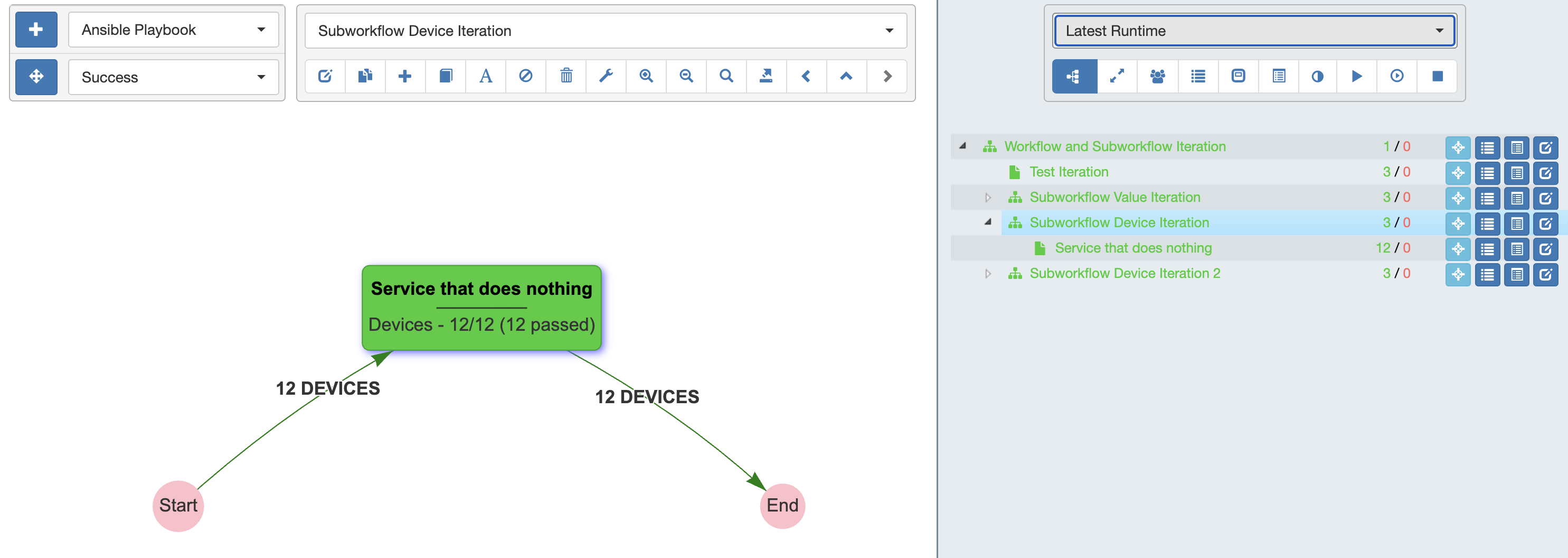
The tree automatically tracks the current workflow:
- Only the services on the path of the displayed workflow are open by default.
- The currently displayed workflow is highlighted in blue in the tree.
Double-clicking a service will automatically select and focus on that service. If the service is in another workflow, it will switch to that workflow.
When a workflow has a superworkflow, it is displayed as part of the tree.
Workflow Search
The workflow search mechanism is designed to operate along both the Workflow Builder and the Workflow Tree. You can click the magnifying glass icon to open the Search panel.
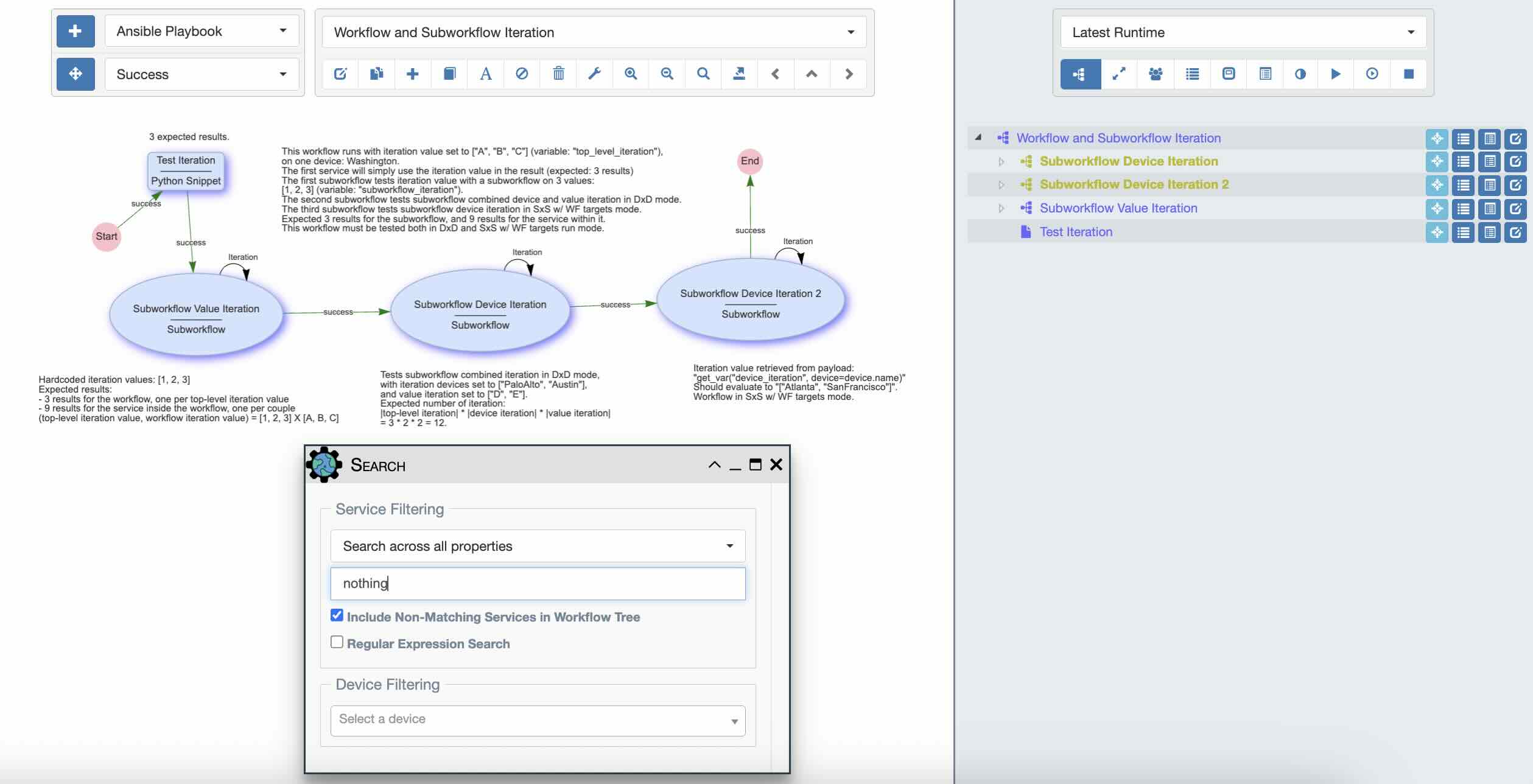
The Search panel provides the following options:
-
Type of Search
Search by name: Searches based on service names.Search across all properties: Searches across all properties, including python fields (e.g preprocessing, postprocessing, source code of a python snippet service, etc). This is especially useful when looking for a specific variable or python function to see where it is used throughout the workflow.
-
Include Non-Matching Services in Workflow Tree: This option only affects the workflow tree and does not impact the workflow builder (in the workflow builder, services are highlighted in yellow if they are a match)- Unchecked (default): Only matching services are displayed in the workflow tree.
- Checked: All services are displayed, but matching ones are highlighted in yellow.
-
Regular Expression Search: When enabled, the text string entered is treated as a regular expression. -
Device Filtering: Limits the display of success / failure colors to a specific device. This option is only applicable in runtime mode (the selected device must be one of the target devices for that runtime).
Runtime Notes
Labels in a workflow are always displayed, whether in "Normal Display" mode or when viewing a specific runtime. However, a specific type of label, referred to as "notes," can be created and deleted during a runtime in Python.
Notes can be created with the set_note function: set_note(-10.24, 22.5, "note1"). The first two parameters are the position, and the third is the content of the note. Notes can be removed with the remove_note function: remove_note(-10.24, 22.5).
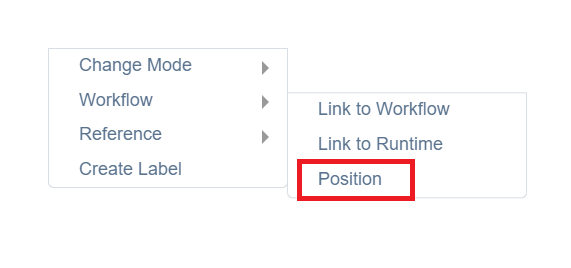
A position in the workflow builder can be obtained from the right-click menu ("Reference" / "Position"):
If a note is not removed by the end of the run, it will be permanently displayed when viewing that specific runtime in the workflow builder.
Dry Run
"Dry Run" is a mechanism that allows a service to return results as part of a run without actually executing the service. This is useful when building a workflow with services that connect to network devices, as it enables testing without hitting the network.
"Dry Run" is a service property configured in the service's Edit Panel, step 3, under the "Workflow Parameters" section.

While the service itself does not run, the string substitution mechanism is applied, giving the user an idea of the parameters the service would use if it weren't in "Dry Run" mode.
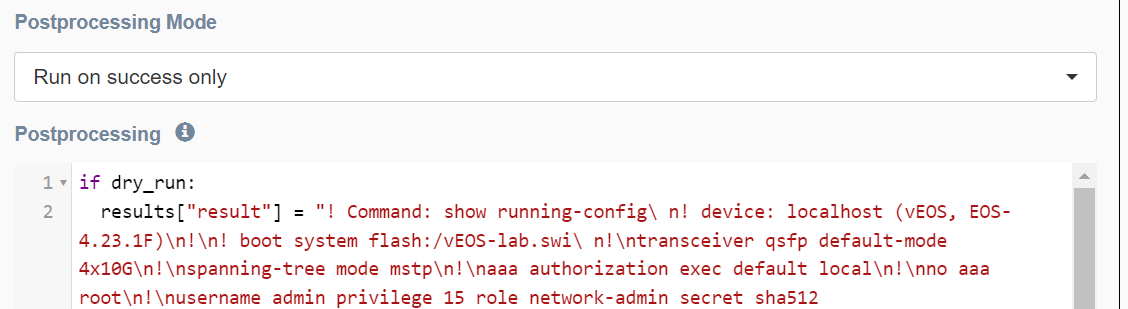
A global variable, dry_run (set to True if the service is in Dry Run mode, and False otherwise), is available for users to tweak the results of a service in "Dry Run" mode. This variable can be used to change the service results only if "Dry Run" is enabled. These results can then be used by subsequent services.
Example use-case: A netmiko service is configured to retrieve a device's configuration. In normal mode, it connects to the device and runs the command to get the configuration. In "Dry Run" mode (if dry_run), the configuration is manually defined in the post-processing section. Subsequent services using this configuration will function as if the netmiko service had actually connected to the device, resulting in faster execution speed.
The dry_run variable can be configured in the parameterized form, allowing the user to specify for each run whether the service or workflow should operate in "Dry Run" mode or not.
Services in Dry Run mode are displayed with a special green color to distinguish them from other services.
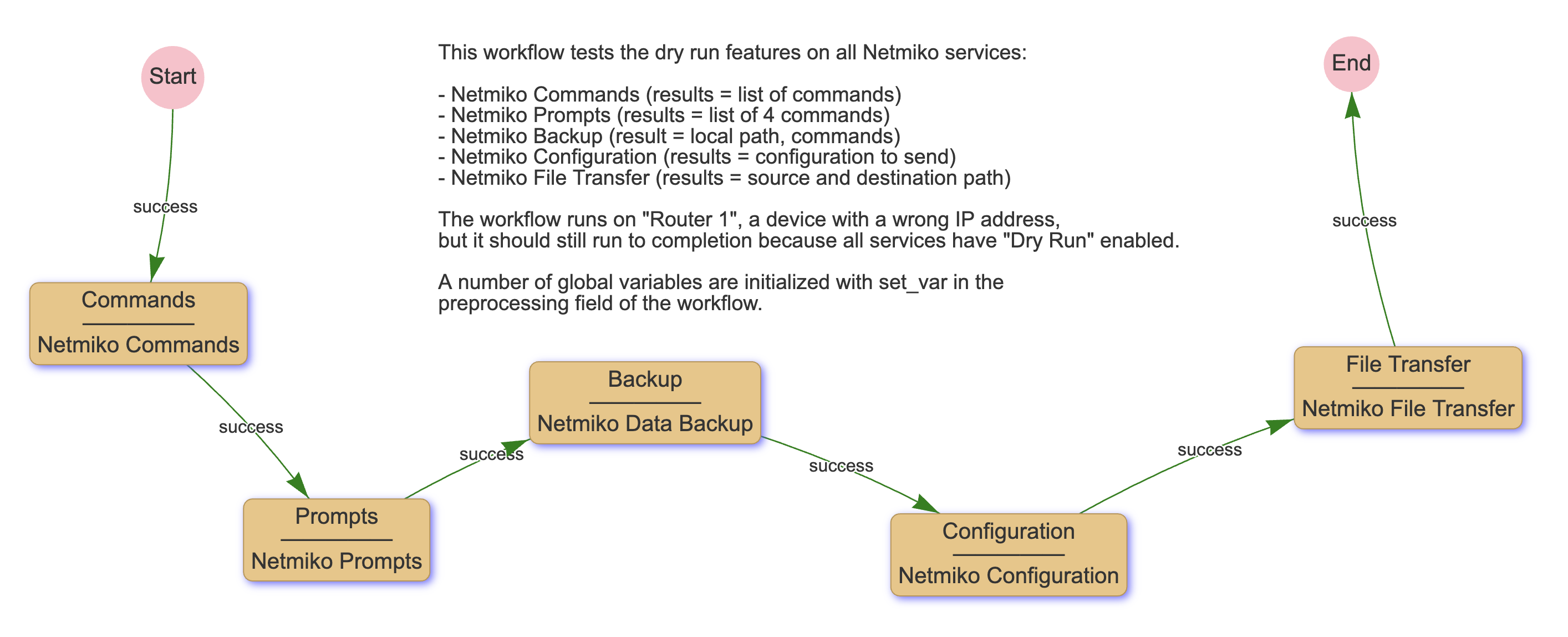
This color has different meanings depending on the display mode in the workflow builder:
- In "Normal Display" mode, the green color indicates that the service is configured to run in Dry Run mode (the "Dry Run" property is enabled in the service parameters).
- When viewing a specific runtime, the green color indicates that the service ran in Dry Run mode during that runtime.
When the "Dry Run" property is enabled in a workflow, it cascades to everything within that workflow. Any service in the workflow will be considered to be in "Dry Run" mode, making the entire workflow effectively operate in "Dry Run" mode.