Overview
Results represent an automation outcome from running a Service (or Workflow) against one or more Device targets.
Tip
In the eNMS system, Run and Result objects store different information. A Run is a container for individual Service and/or Device Results.
In the Results table, eNMS first displays the Run-level objects - which correlate
the start of an automation activity (i.e., running a service or workflow).
By drilling down further, the Results Viewer will display the per-Service and/or
per-Device Results.
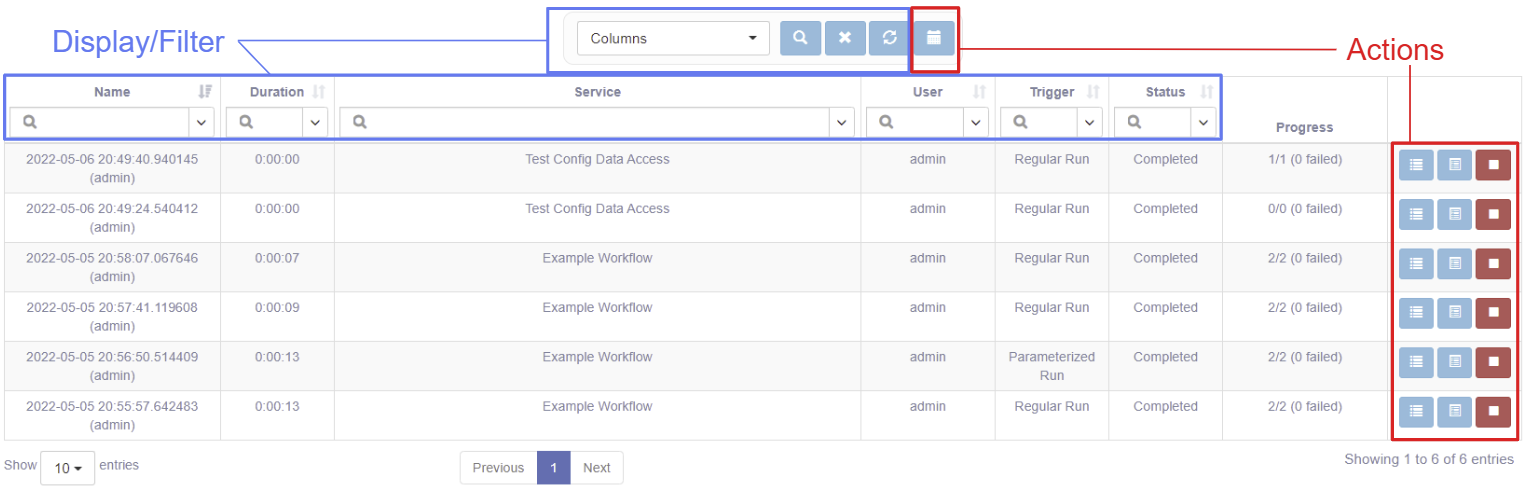
The table has selectable columns for browsing the Run properties like Name, Duration, Service, User, Trigger, Status and Progress.
In the top menu:
- The first button (with "single vs. multiple users" icons) allows users to switch between viewing all runs (from any user) and viewing only their own runs.
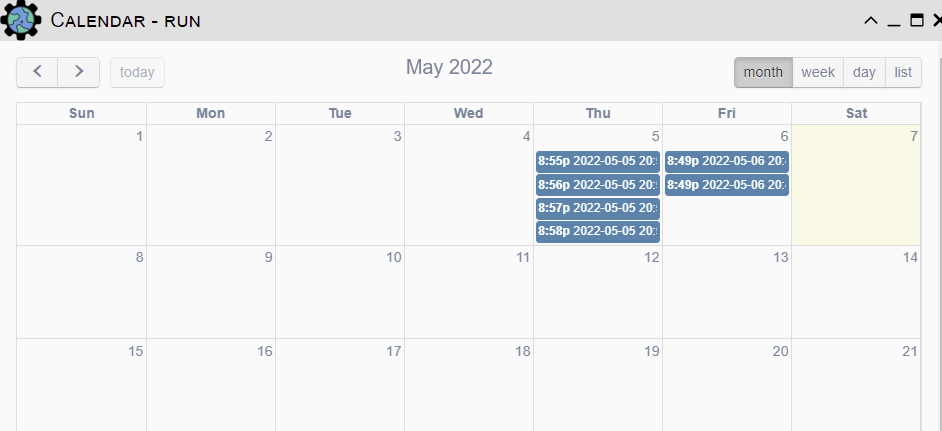
- The last button (with a "calendar" icon) opens a calendar showing the start times of all runs.
Displaying and Filtering Results
Use the Columns pull-down to select which table columns to display. Refer to the Search System for instructions on how to filter this table.
Results Management
These actions apply to all results selected by the current Result filter:
- Calendar - view the results by runtime.
These actions apply to single result:
- Logs - show the logs for the service or workflow.
- Results - view of results.
- Stop - stop the service or workflow after the current device completes the current service.
Result Viewer(s) - Example
Clicking on the Results will open the Results Viewer; a tree-based display of the
individual Services with summary information.
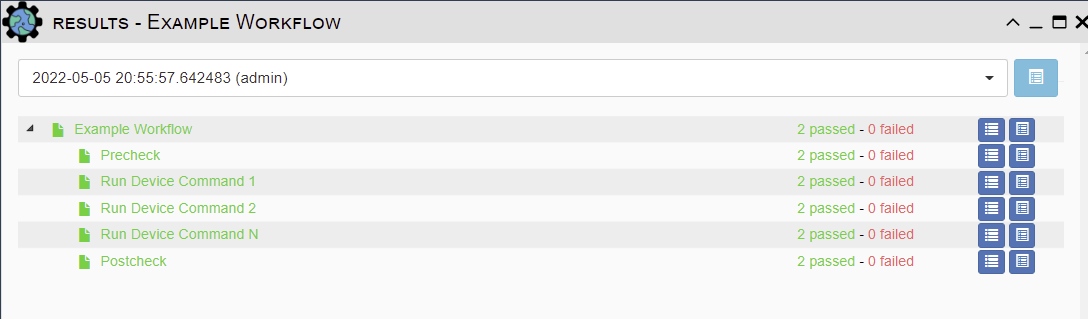
Clicking on the Results button here will show next level of Results details -
this typically is the outcomes for all Devices for a single service.
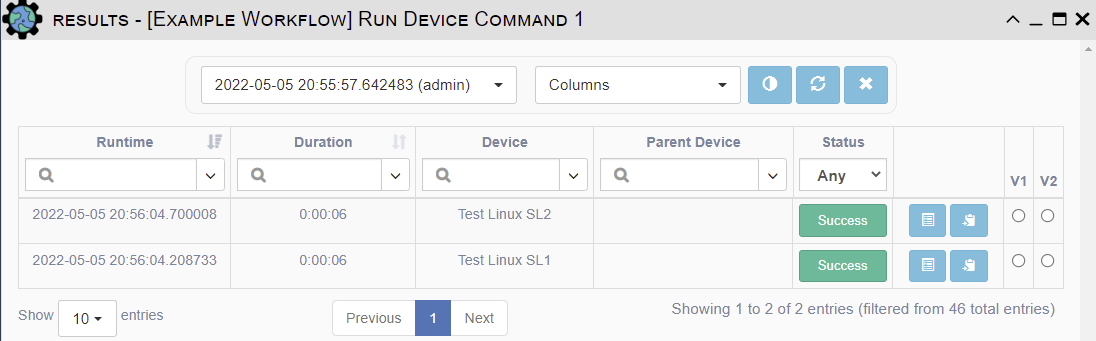
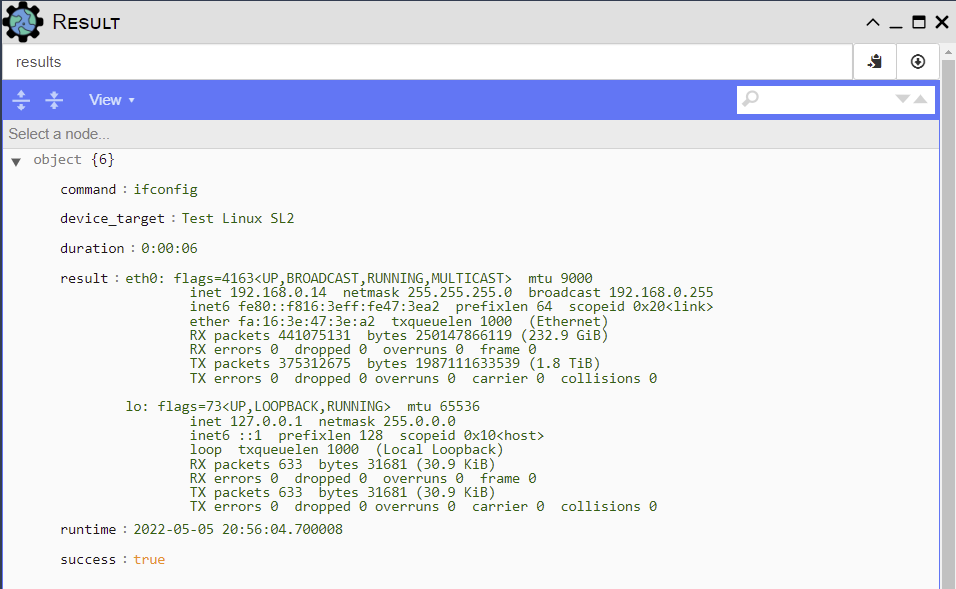
Clicking on the Results button will show the detailed, specific result data for a
single Service and Device.
Result Color in the Workflow Builder
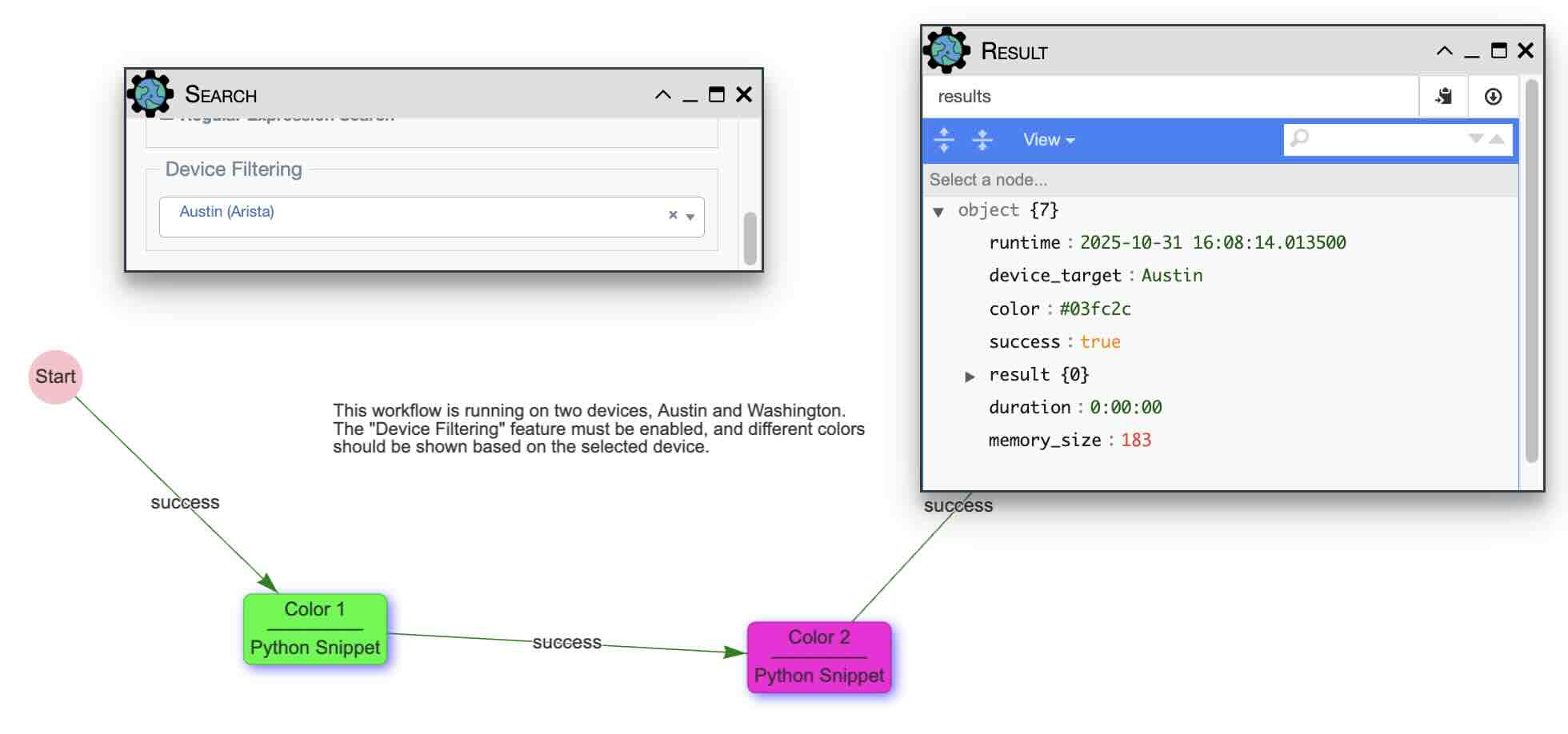
In the Workflow Builder, results appear green if a service runs successfully, and red otherwise.
You can customize the colors for each device by adding a "color" key in the results, either by specifying a color name ("color": "red") or a hexadecimal code ("color": "#123456").
When you switch to Per-Device Result Display (by opening the Workflow Builder Search Panel and selecting a device from the Device Filtering drop-down), the results for that device will display using the specified color in the Workflow Builder.
Other ways to view results
Results can be also be viewed from:
- Inside the Workflow Builder.
- From the Inventory => Devices table.